Instructions on how to change Gmail mailbox address, keeping all data intact


(Dan Tri) - The article below will guide you how to change the address of your Gmail mailbox to become more friendly and easier to remember... but still keep all existing data on the old mailbox intact.

Late last year, Google launched a feature that allows users to change the Gmail mailbox address without losing the data stored in this mailbox.
For example, if you are using a Gmail mailbox with an address like congchuabongbong_200x@gmail.com or boy_dep_trai_9x@gmail.com, but feel that this email address is not suitable for work use, or want to change to a new email address that is more friendly, memorable or professional, then Google's new feature will be really useful.
After changing the name, the old email address will continue to work in parallel. Users will still receive mail sent to both the old and new addresses, helping the transition process go smoothly without fear of losing information.
Initially, the Gmail address change feature was only tested by Google in the US and a few countries. Currently this feature has been brought to users in Vietnam.
In case you change your Gmail address but still keep the old mailbox data, you can follow the instructions below.
You can change your Gmail address through the application on your Android or iPhone smartphone. The procedure on the two mobile platforms is the same.
Readers follow these steps to change email address on smartphone:
- First, activate the Gmail application on your smartphone. From the main interface of the application, tap the username icon in the upper right corner, then select “Manage your Google account”.

- At the interface that appears, select "Personal information", then click on "Email".

- Click on the email in the "Google Account email address" section. At this step, Google will ask users to authenticate their account using fingerprint security or Face ID on iPhone to continue.
After security authentication, press the “Change Google Account email” button.

- Scroll down, enter the new email address you want to change for your Gmail mailbox, then click the "Change email" button. Click the "Yes, change email address" button in the dialog box that appears to confirm changing your mailbox address.
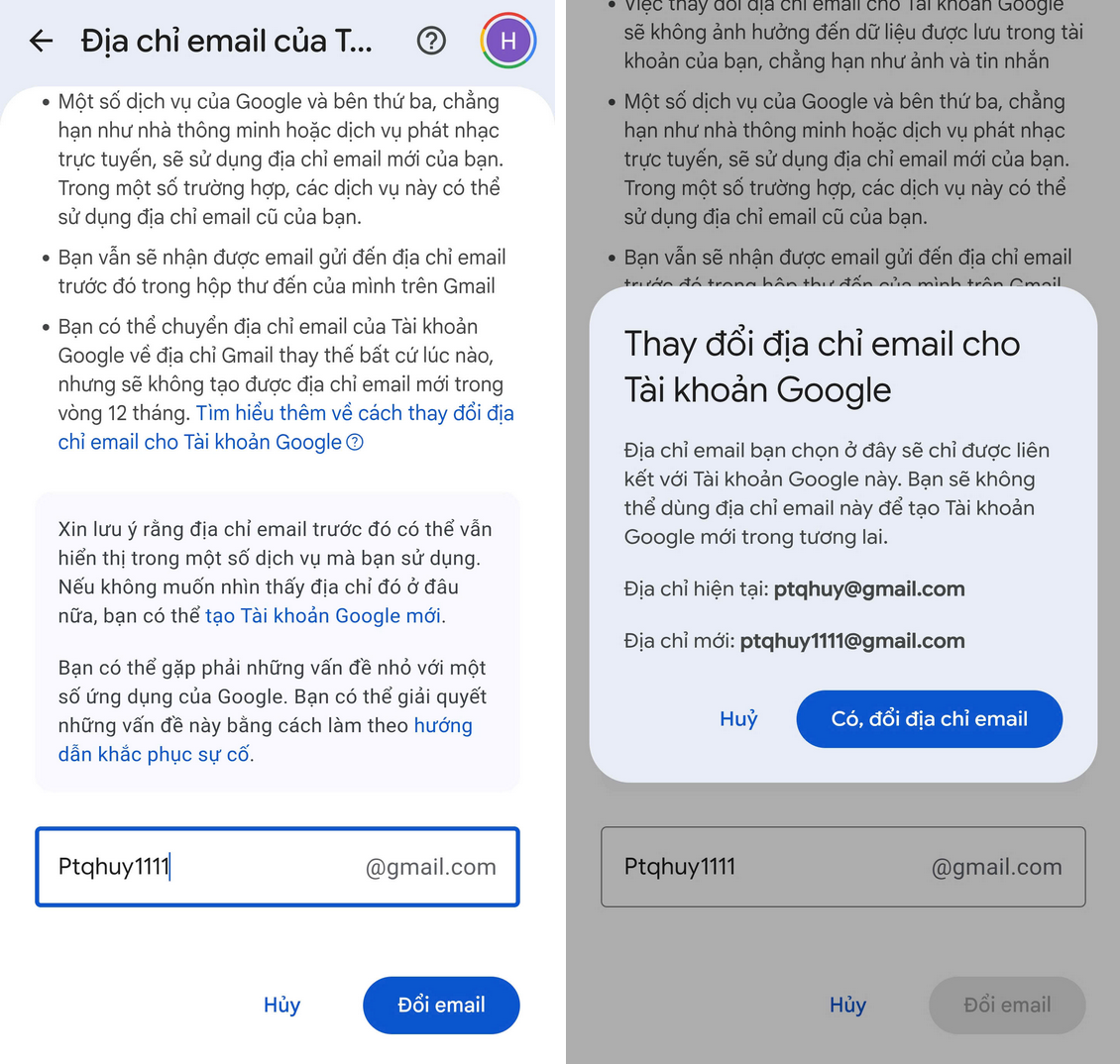
So, you have completed changing the email address for your Gmail mailbox through the smartphone application.
To change your Gmail address on your computer, follow these steps:
- First, log in to your Gmail mailbox on your web browser. At the mailbox interface, click on the account name in the upper right corner, select "Manage your Google account".

- Click the "Email" button at the website that appears.
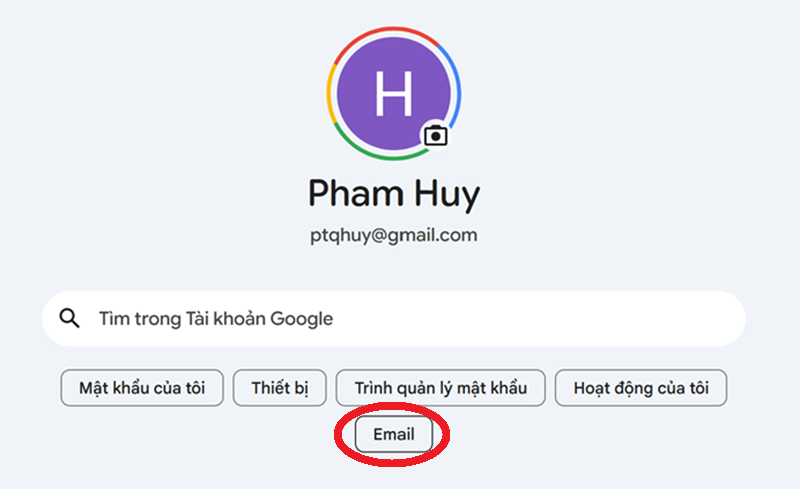
- Click on the email in the "Google Account email address" section, then enter the password of the Gmail mailbox to continue.

- After logging in, press the "Change Google account email" button, then scroll down and enter the new email address for the Gmail mailbox and press the "Change email" button.

Finally, click the "Yes, change email address" button in the dialog box that appears to confirm changing the email address you are using.
When you change your Google Account's email address from an @gmail.com address to a new @gmail.com address, the previous email address remains and continues to receive incoming email as usual.
However, your previous email address will become your alternate address (backup address), while the newly changed address will become your primary mailbox address.
When an email is sent to the old address, you will receive the email on both the old and new address's mailboxes.
All data stored in the Google account under the old email address, such as photos, emails, contacts... are kept intact and unaffected. These data will be transferred to the new email address you have changed.
You can use your old or new email address to log in to Google services, such as Gmail, Google Maps, YouTube, Google Play... Google services that have been logged in with an old email address still work normally, without requiring users to log in with a new email address.
If desired, users can switch back to using the old email address at any time, but you cannot delete the newly created email address.
An important note, users can only change their Gmail address once per year and a maximum of only 3 times. Therefore, you should consider choosing a new email address that is suitable for long-term use.