The hidden feature frees up smartphone memory without causing data loss
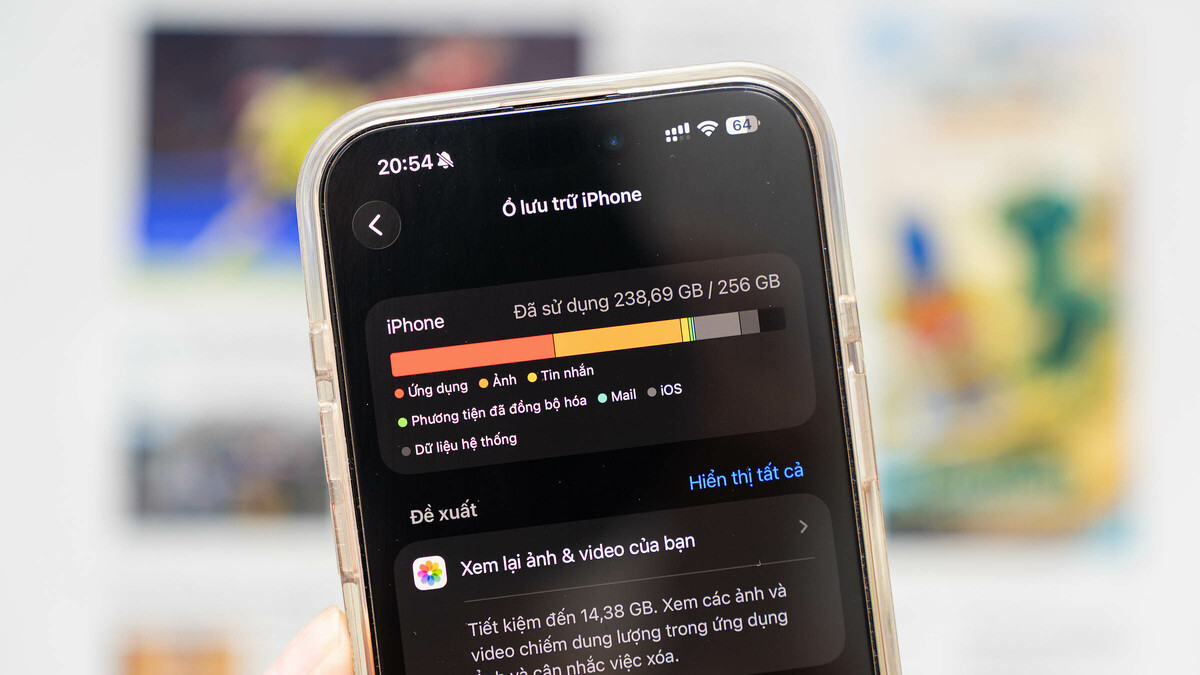
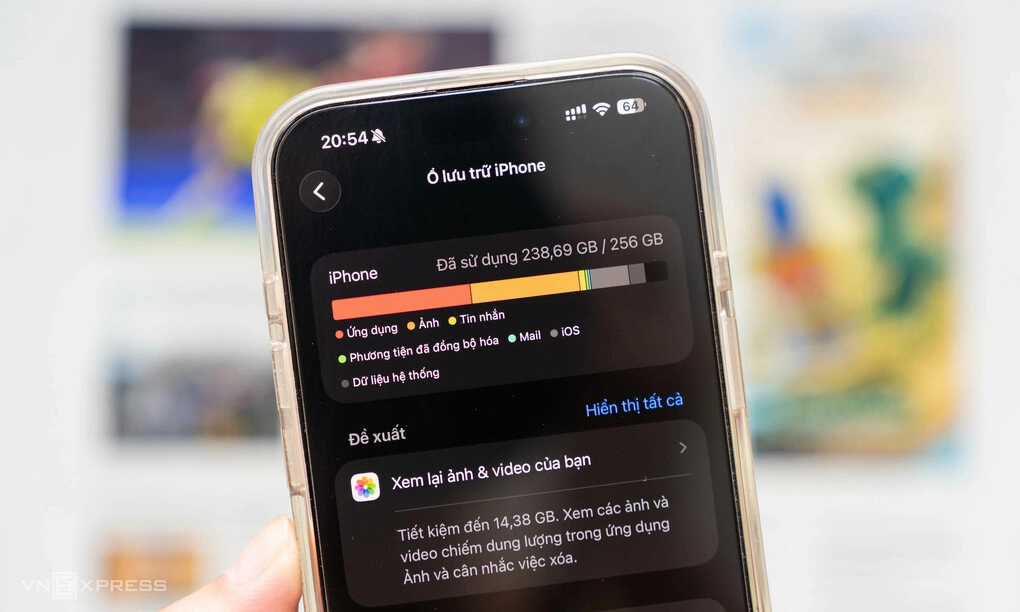
Smartphones today are often overloaded due to a series of applications, images, videos and data files. When an application is removed, all user settings and data such as login accounts, personal settings, and usage history will be erased. If they want to use it again, they must download it, log in and set up parameters from scratch.
To fix the problem, Google added the "Auto-Archive Apps" tool on Android while Apple has the "Remove Unused Apps" feature on iOS. The mode works as a neutral solution by deleting the program code that takes up the most space in the application, but retaining important data files and application icons on the home screen.
When needing to reuse, users just need to click on the application icon, the system will automatically redownload the missing files in a few seconds and restore the correct previous state without requiring login. The feature is considered suitable for rarely used apps such as travel apps, membership cards...

Google confirms that the "Automatically store apps" feature for Android phones can help save up to 60% of the space that apps take up without deleting personal data.
To activate, users need to open the Play Store app store, tap the account icon in the upper right corner, select Settings, select General and open "Auto-store apps".
When the device memory is not enough, the system will automatically package rarely used apps. In addition, Android users can also proactively archive each app manually by going to Settings -> Applications, clicking on the desired application and selecting Archive.

On the iOS operating system, Apple has equipped "Remove unused applications" from iOS 11 version. To activate, users go to Settings -> Applications -> App Store, then find and select to activate the feature.
After turning on, iOS automatically identifies and releases the longest unused apps when the device's memory capacity is low. Applications that have had their source code removed will appear with a small arrow-shaped cloud icon next to the application name on the home screen.
If you want to proactively select applications that need to free up space, users can go to Settings -> General Settings -> iPhone Storage, select a specific application and click Uninstall application.
Huy Duc